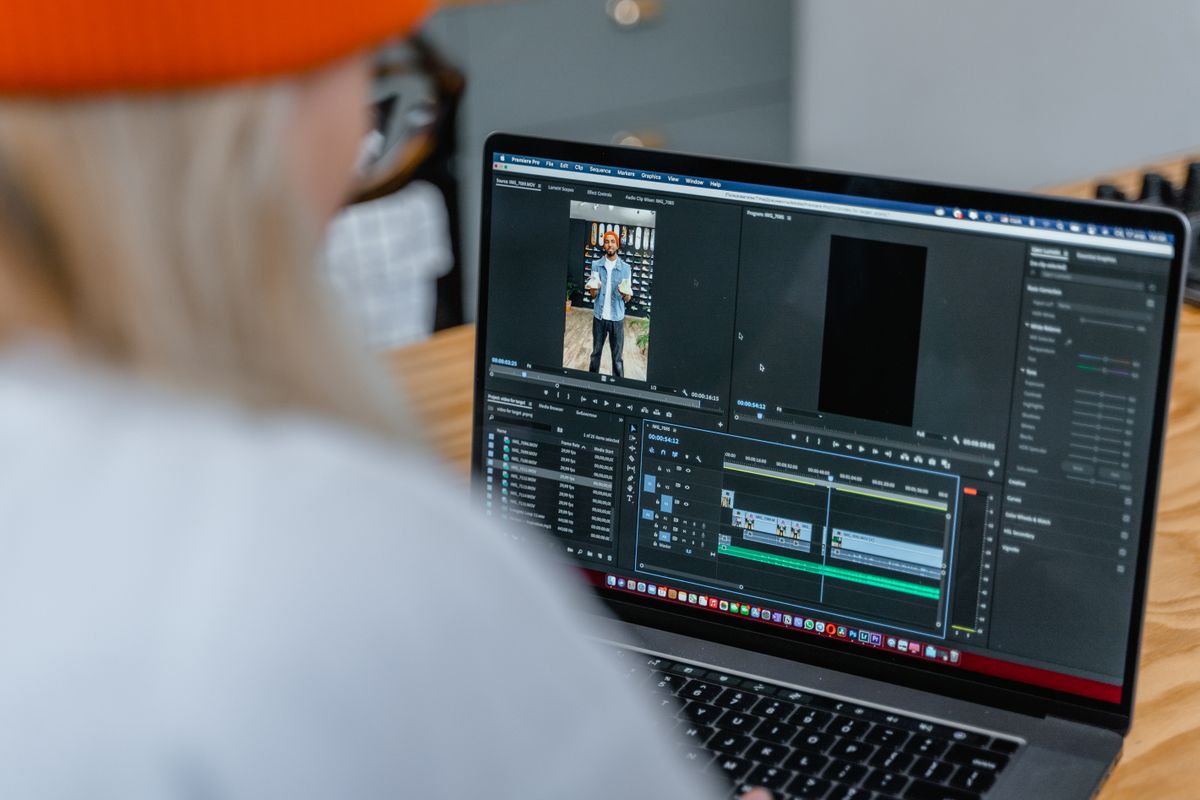
You attach a video, press send, and get an error: the file is too large. Most email services cap attachments at around 20 to 25 MB, and a minute of phone video can easily be ten times that. The fix is to compress the video first. Done well, it looks almost the same on screen and fits comfortably in the message.
This guide shows how to compress a video for email in a few minutes, what size to aim for, and what to do when the video is simply too long.
How big can an email attachment be?
The limit depends on your provider, and providers change it, so check yours. As a rule of thumb, Gmail and Yahoo allow about 25 MB, and Outlook.com and iCloud Mail about 20 MB. There is a catch: email encodes attachments, which makes them roughly a third bigger in transit. A 20 MB video can therefore be refused by a service with a 25 MB limit.
So aim a few megabytes under the limit. For a 25 MB service, a target of 18 to 20 MB is safe.
Also check how many files you are sending. The limit applies to the message, so two 15 MB videos will fail on a 25 MB service even though each looks small on its own. Add them up.
Why videos are so big
Phone cameras record at very high quality, often 4K, using several megabytes for every second of footage. Email does not need that. A recipient watching on a laptop or phone cannot tell the difference between 4K and a well-compressed 720p version, but the file can be ten to twenty times smaller.
Three things decide the final size: the length of the video, its resolution (the picture size) and its bitrate (how much data is spent per second). Compression lowers the last two.
Method 1: Compress it free in your browser
The quickest route needs no app and no account, and your video never leaves your device.
- Open the email video compressor and drop in your MP4, MOV or WebM file.
- Check the target size. It starts at 25 MB; lower it to 18 or 20 to leave room for encoding.
- Press Compress and keep the tab open. A short clip takes seconds, a longer one a few minutes.
- Look at the new size, play the result, and download the MP4.
Because the compression runs on your own device, the video is not uploaded anywhere, which matters for family clips, work footage and anything private.
Method 2: Use your phone or computer
On an iPhone, the Mail app offers to scale a video to Small, Medium, Large or Actual Size before sending. Small is usually enough for email. On Android, many gallery and messaging apps offer a "reduce size" or "low quality" option. On a Mac, QuickTime Player can export a lower resolution version from the File menu. These work, but you cannot choose an exact size, so you may need to try more than once.
If you want a precise result, the iPhone and Mac versions of the compressor run in the browser with the same target-size control.
Method 3: A free desktop app
If you compress videos often, a free program such as HandBrake gives you full control. Choose the Fast 720p30 preset, set the format to MP4, and press Start. It is powerful but has many settings, and it takes a few minutes to learn, so for a one-off email the browser method is quicker.
Whichever tool you use, aim for MP4 with H.264 video, because every email program and phone can play it without extra software.
What size can you expect?
How good the result looks depends on how much space each second gets. This table shows roughly what a 25 MB target allows. The compressor picks the picture size for you, so treat these as guides rather than promises.
| Video length | Picture size at about 25 MB | How it looks |
|---|---|---|
| 1 minute | 1080p | Sharp, nearly identical |
| 2 minutes | 720p | Clean on any screen |
| 3 to 5 minutes | 480p | Fine on a phone, softer on a laptop |
| 10 minutes | 360p | Watchable, but plainly reduced |
The settings that matter for email
- Format: MP4 (H.264). It plays on every phone, laptop and email preview. Avoid sending MOV or AVI files to people on mixed devices.
- Resolution: 720p. The best balance for most clips. Drop to 480p only for long videos.
- Frame rate: leave it alone. Lowering 30 frames per second saves little and makes motion look jerky.
- Audio: keep it. Sound takes very little space compared with the picture.
Tips for the best result
- Trim first. Cutting dead time at the start and end is the biggest saving of all, and it costs no quality.
- Aim under the limit. A few megabytes of margin saves a second attempt.
- Compress once, from the original. Re-compressing an already compressed file piles up quality loss, so always start from your best copy.
- Keep the original. Save the full-size video before you shrink it.
- Check the sound. Play the result with the volume up; speech should still be clear.
If the video is still too big
When a long video cannot fit at a watchable quality, shrinking harder only makes it worse. Better options exist:
- Send a link instead. Upload the original to Google Drive, iCloud, Dropbox or OneDrive and share the link. The recipient gets full quality and your message stays small.
- Split it. Send two shorter videos in two messages.
- Send a preview. Compress a short highlight for email and share the full version by link.
- Make a GIF. For a few seconds of motion, the video to GIF tool makes something small that plays right inside the message.
Common questions
Will compression ruin the quality? Not if you choose a sensible target. Dropping from 4K to 720p removes detail nobody sees on a normal screen.
Why did my result come out slightly over the target? File size depends on how busy the picture is, so it can land a little off. Lower the target by a few megabytes and run it again.
Is it safe for private videos? In the browser method, yes: the file is processed on your device and never sent to a server.
Can I compress a video on my phone without an app? Yes. Open the compressor in Safari or Chrome, choose the video from your camera roll, and it runs in the browser with nothing to install.
Does it work with iPhone MOV files? Yes. MOV, MP4 and WebM files are accepted, and the download is an MP4 that opens almost anywhere.
Is it free? Yes, with no watermark and no sign-up. Long videos just take a little longer, because your own device does the work.
Pick a target size and shrink your video in a few clicks.
Compress a video