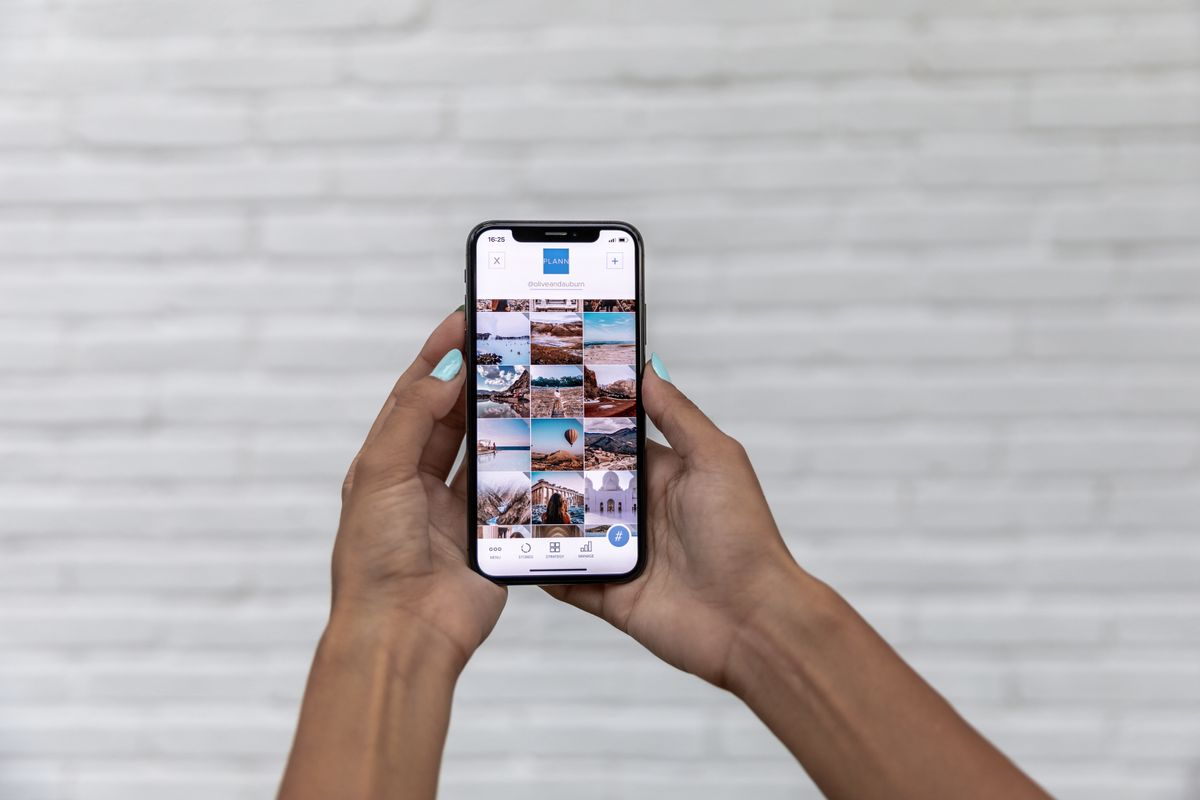
You pick the perfect photo, upload it to Instagram, and it comes out cropped: a head cut off, the edge of a product missing, a blurry profile picture. The reason is simple. Instagram shows pictures in a few fixed shapes, and anything that does not fit is trimmed or squeezed. Resize the image to the right size first and you stay in control of what people see.
Here are the sizes to use for every kind of Instagram post, and how to resize a photo in under a minute.
Why does Instagram crop your photo?
The feed only accepts a range of shapes, from wide at about 1.91:1 to tall at 4:5. Anything outside that range is cropped to fit. Stories and Reels are 9:16, so an ordinary landscape photo fills only part of the screen. And the profile picture is shown inside a circle, so the corners of a square image disappear. Once you know the shapes, you can choose the size before you upload, instead of letting the app decide for you.
What do the pixel numbers mean?
A size such as 1080 × 1350 means 1080 pixels wide and 1350 pixels tall. Instagram displays feed pictures at about 1080 pixels wide on phones, so a bigger file gives no extra sharpness. A photo straight from a modern phone is often 4000 pixels wide, several times more than Instagram needs, and the app shrinks it for you.
The Instagram sizes in one table
| Type | Size in pixels | Shape | Best for |
|---|---|---|---|
| Square post | 1080 × 1080 | 1:1 | Grids, logos and quotes; the safe choice |
| Portrait post | 1080 × 1350 | 4:5 | People and products; takes the most room in the feed |
| Landscape post | 1080 × 566 | 1.91:1 | Wide scenes and panoramas |
| Story or reel | 1080 × 1920 | 9:16 | Stories, Reels and vertical video |
| Profile picture | 320 × 320 | 1:1, shown as a circle | Your avatar |
Instagram has changed its layouts before and may again, so if a post looks cropped after you upload it, check how the current version of the app displays it.
Which size should you use?
- Portrait (1080 × 1350) for most photos. It is the tallest shape the feed allows, so your post fills more of the screen and stands out as people scroll.
- Square (1080 × 1080) when you want a tidy grid, or when you are not sure.
- Landscape (1080 × 566) only when the picture really is wide, because it takes the least space.
- Story or reel (1080 × 1920) for anything vertical that should fill the screen.
How to resize an image for Instagram in 4 steps
- Open the free Instagram image resizer and drop in your photo.
- Pick the size: square, portrait, landscape, story or profile picture.
- If your photo is a different shape, choose Crop to fill to trim the edges, or Fit whole picture to keep everything with a white border.
- Resize and download, then post it from your phone.
The photo is resized in your browser and is never uploaded, so it is fine for private pictures, and it works on a phone as well as a computer.
Crop to fill or fit the whole picture?
This is the choice that decides how the post looks, so it is worth a moment.
- Crop to fill zooms the picture so it covers the whole frame and trims whatever sticks out. You get a full image with no borders, but you lose the edges. Use it when the subject is in the middle.
- Fit whole picture shrinks the picture until all of it fits, and fills the rest with a white border. Nothing is cut off. Use it for product shots, group photos and anything with text near the edge.
How to post a photo on Instagram without cropping it
If you have a wide photo and want to post all of it, resize it to a square or portrait size using Fit whole picture. The white border keeps the full picture in view, so Instagram has nothing left to trim. It is the simplest fix for group photos, landscapes and screenshots.
Which setting for which kind of photo?
- Product photos: portrait or square, with Fit whole picture, so no edge of the product is trimmed.
- Selfies and portraits: portrait, with Crop to fill, keeping the face near the middle.
- Quotes, posters and graphics: square, so the text sits safely inside the frame.
- Travel and landscape shots: square with Fit whole picture, or landscape if the scene is truly wide.
- Profile pictures: a 320 × 320 square, with your face or logo centred inside the circle.
Resizing on your phone
You do not need a computer. Open the resizer in Safari or Chrome, choose the photo from your library, pick the size and download the result. Depending on your browser it is saved to your Files app, your Downloads or your photo library, and from there you can select it in Instagram as usual. Nothing is uploaded, so it works for private photos too.
Tips for sharper Instagram photos
- Upload at 1080 pixels wide. Instagram shrinks bigger images anyway, and the smaller file uploads faster.
- Start from the biggest, sharpest original. Resize down, not up. Stretching a small photo makes it soft; if you have no choice, export the largest size you can and accept a little softness.
- Keep faces and text away from the edges. Feed grids and profile circles crop the sides.
- Use JPG for photos. It is small and Instagram handles it well. PNG suits graphics with flat colour and text.
- Keep carousel photos the same shape. Instagram generally crops all the slides in a post to match, so resize them all to the same size.
- Check on your phone. Open the post in the app before you share it widely.
Resizing for other platforms
The same method works elsewhere. The Facebook image resizer has presets for shared posts, cover photos and stories, and the general image resizer lets you set any size you like. If an image is too heavy to upload, shrink the file with the image compressor.
Common questions
What is the best size for an Instagram post? 1080 × 1350 pixels for most photos, because it fills the most space in the feed. 1080 × 1080 is the safe square choice.
Why is my Instagram photo blurry? Instagram compresses uploads, and photos that are too small look soft once they are stretched. Upload a sharp image at 1080 pixels wide, and avoid screenshots of photos.
What size is an Instagram profile picture? Upload a square of 320 × 320 pixels. Instagram shows it as a circle, so keep your face in the middle.
Is my photo uploaded when I resize it? No. The resizing happens in your browser and the photo stays on your device.
Drop in a photo and get the exact Instagram size in one click.
Resize for Instagram